

Asset information is more useful when people can access it where they already work. Display saved, editable views in Confluence and Jira dashboards, or connect individual assets to related pages and work items so teams can find the right context without switching tools.
Display an Asset View in Confluence
-
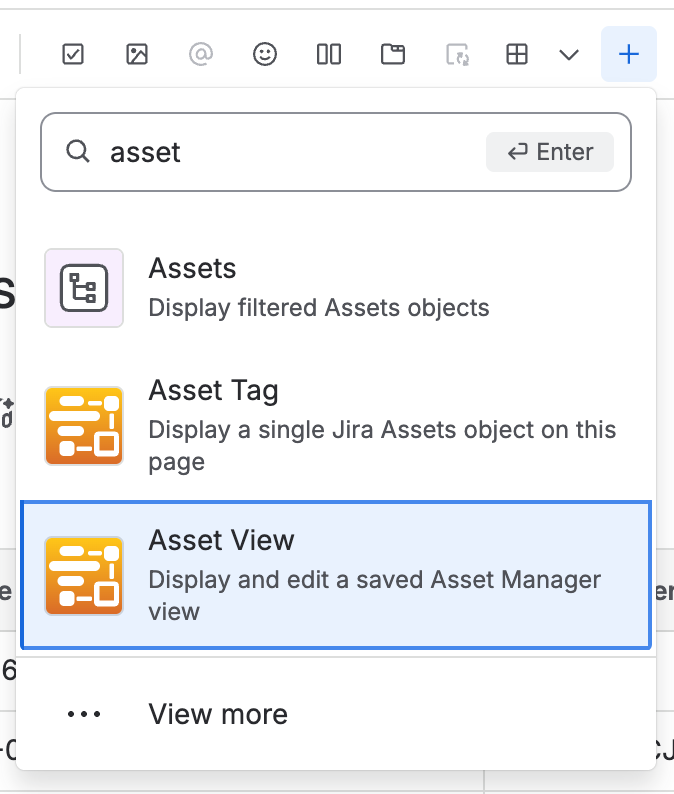
Edit a Confluence page and insert the Asset View macro.
-
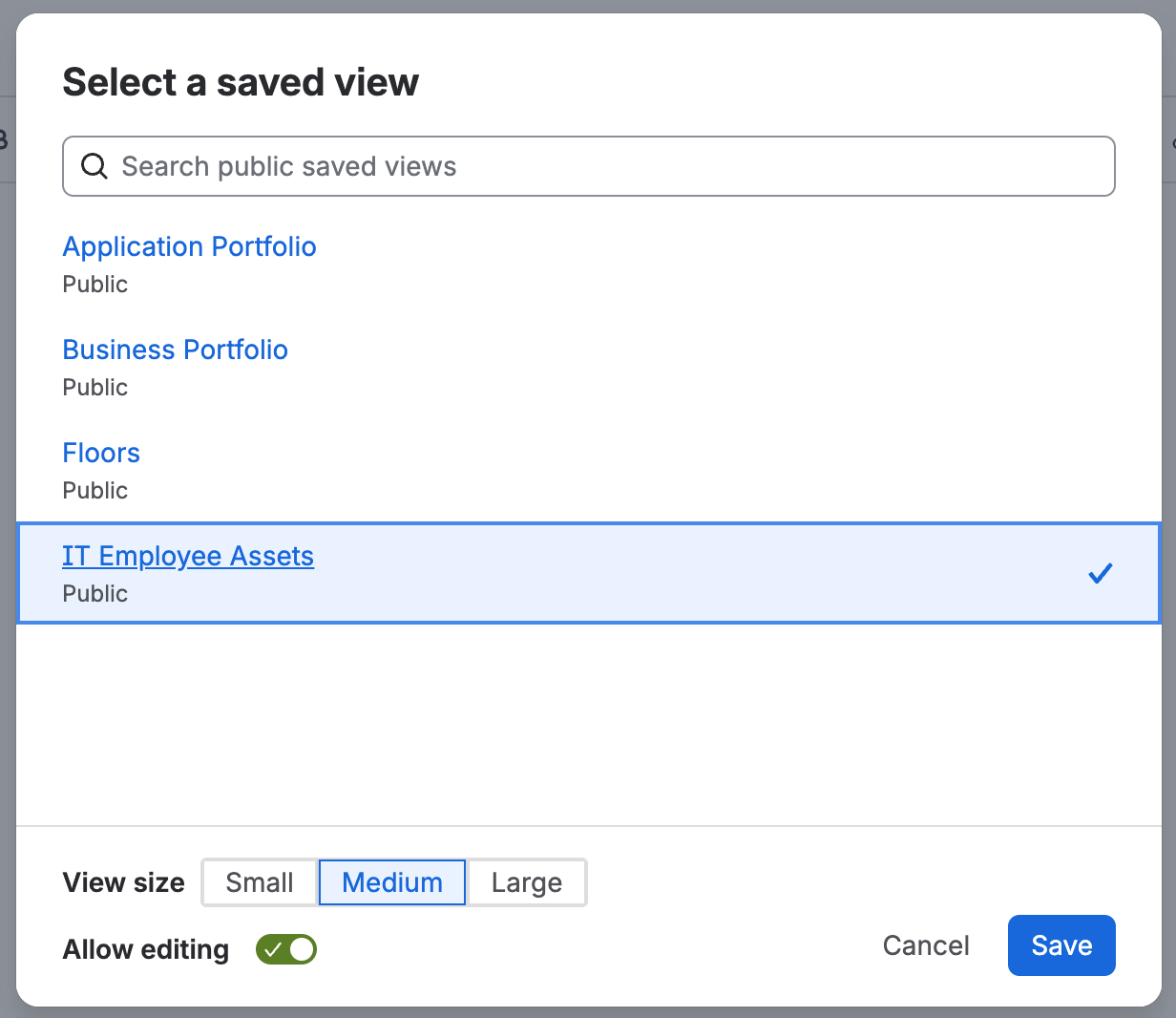
Select the saved view.
-
Choose the view size and whether viewers may edit assets.
-
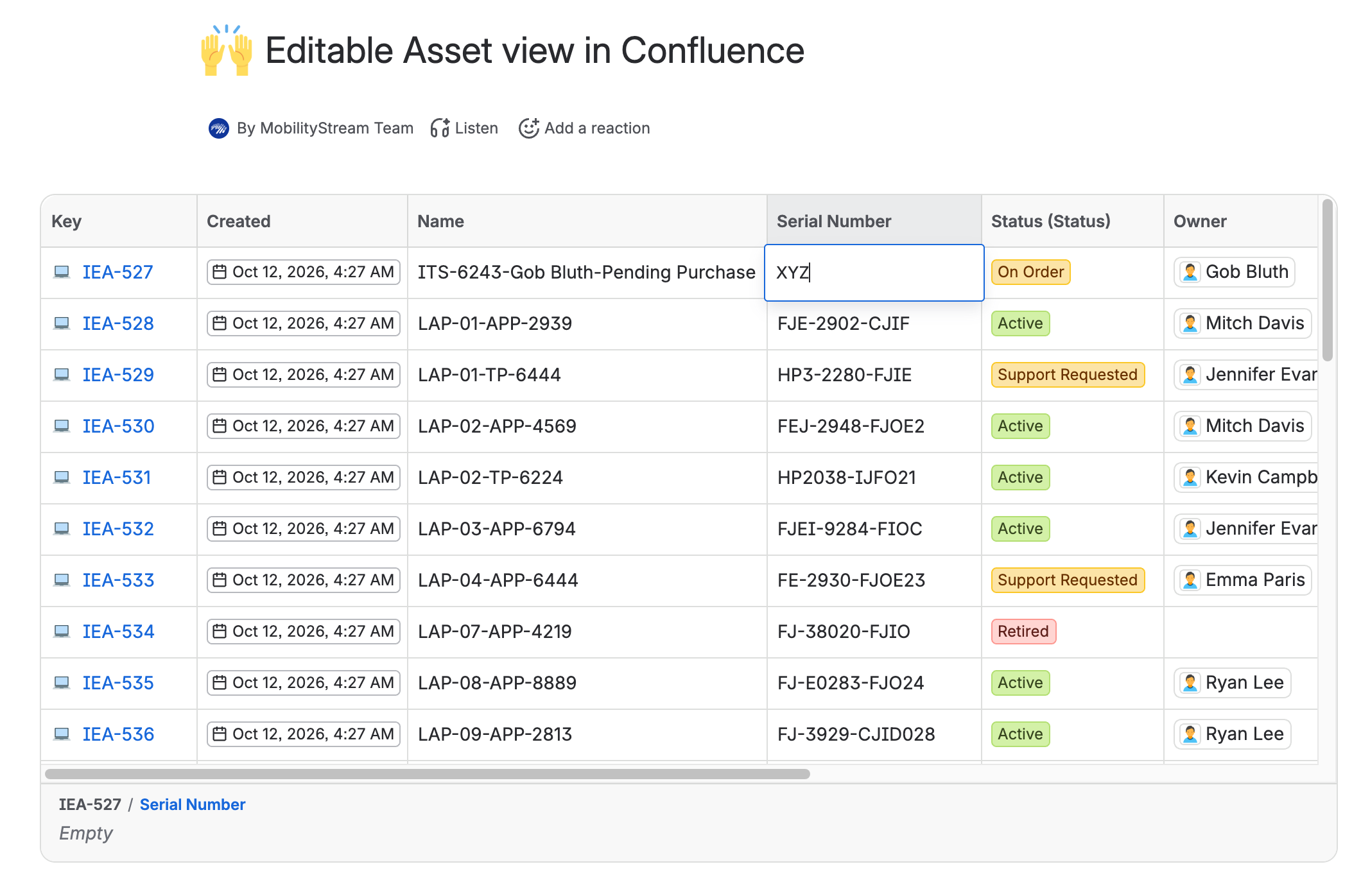
Save and publish the Confluence page.
Read-only mode provides no asset mutation actions. Confluence page-edit mode is also non-mutating, regardless of the macro configuration.
Tag an asset in Confluence
-
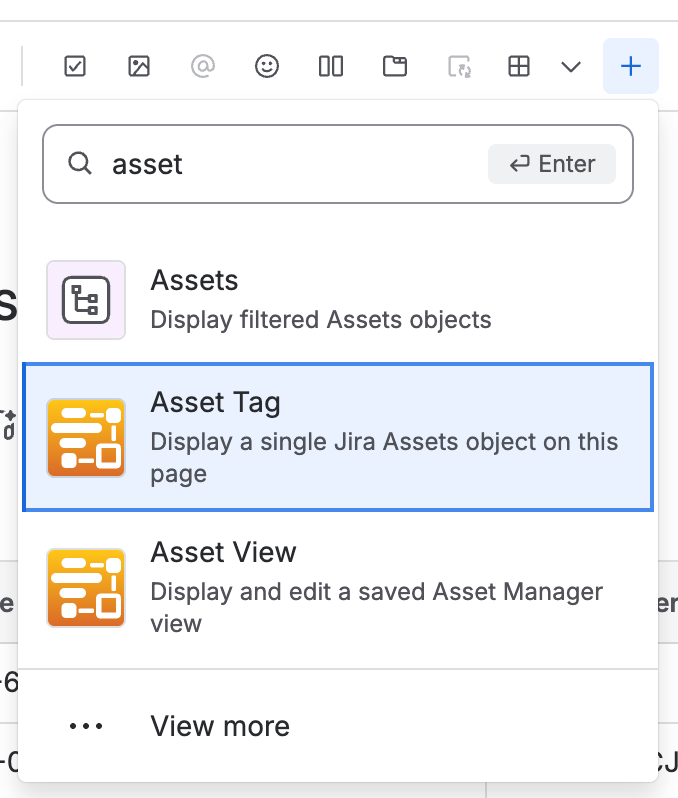
Edit a Confluence page and insert the Asset Tag macro.
-
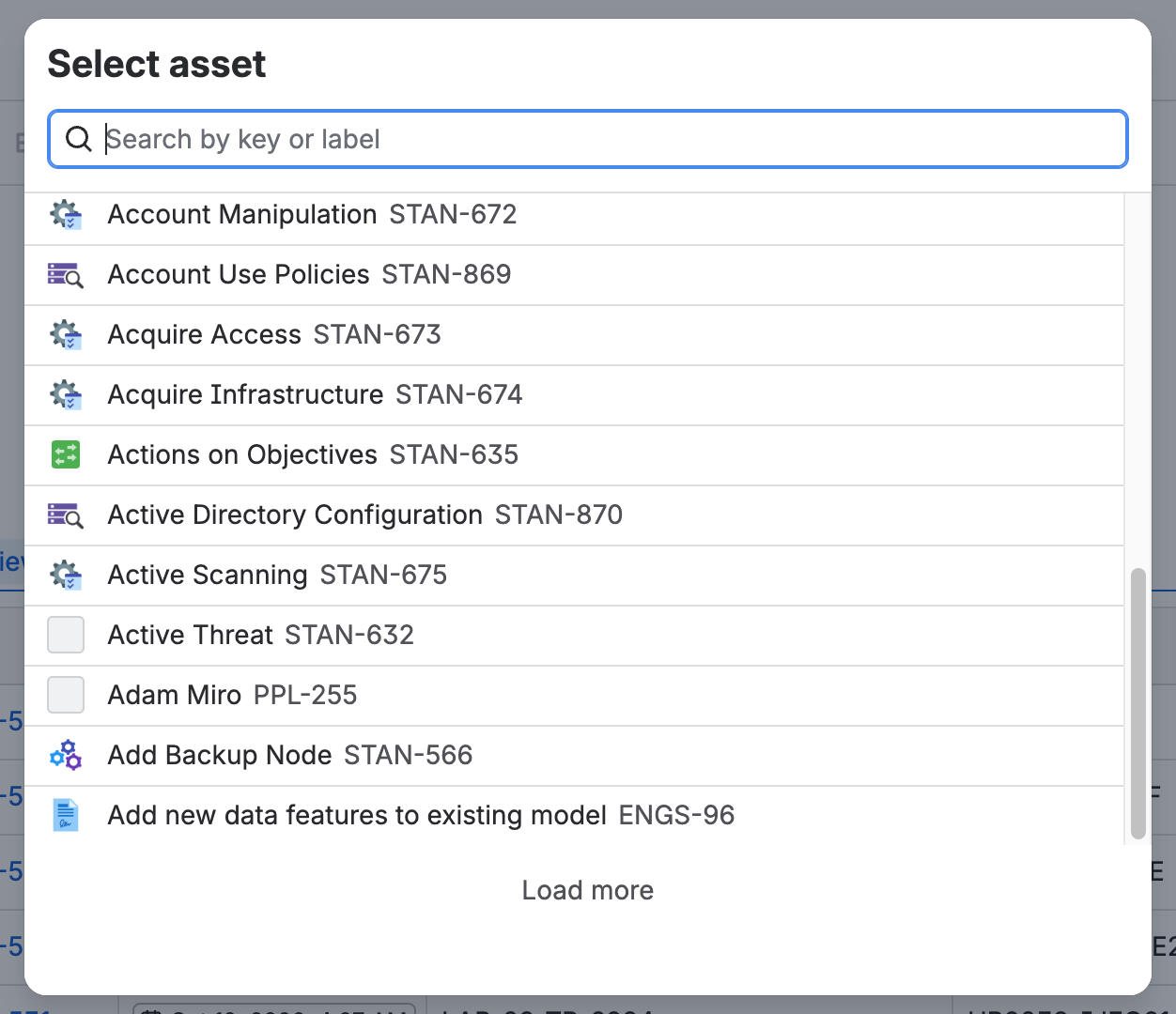
Search for and select the asset.
-
Publish the page.
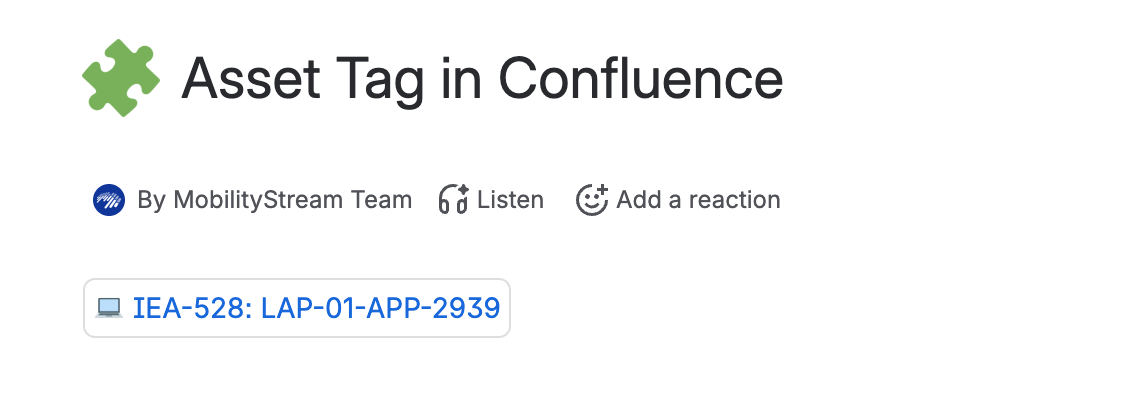
The published tag displays the current asset icon, key, and label and links to Jira Assets.
Find linked Confluence pages
-
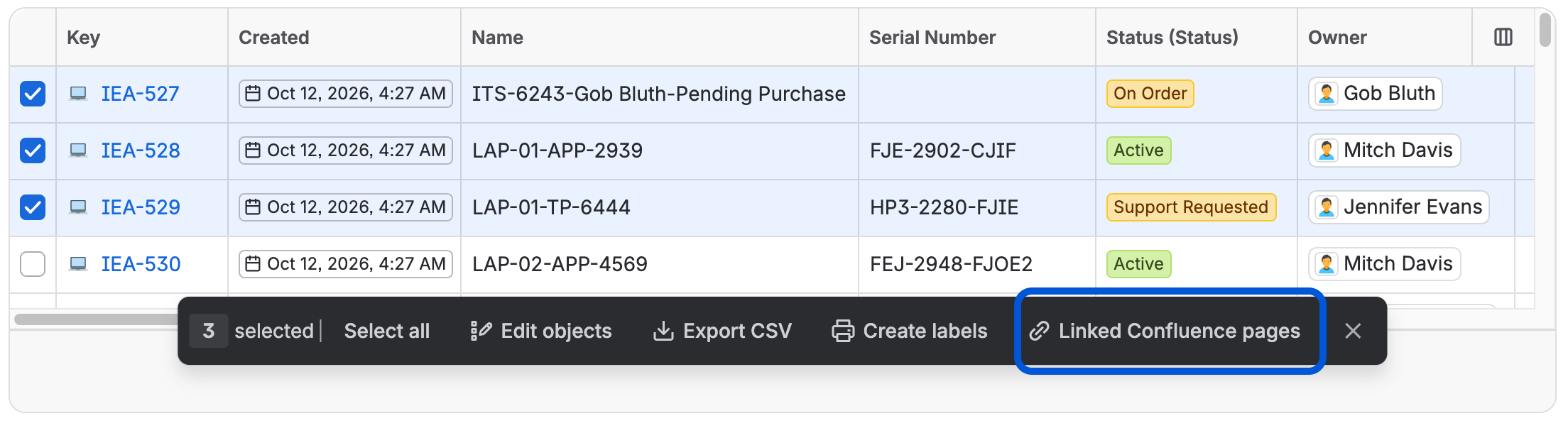
Select up to 25 assets in Asset Manager.
-
Select Linked Confluence pages.
-
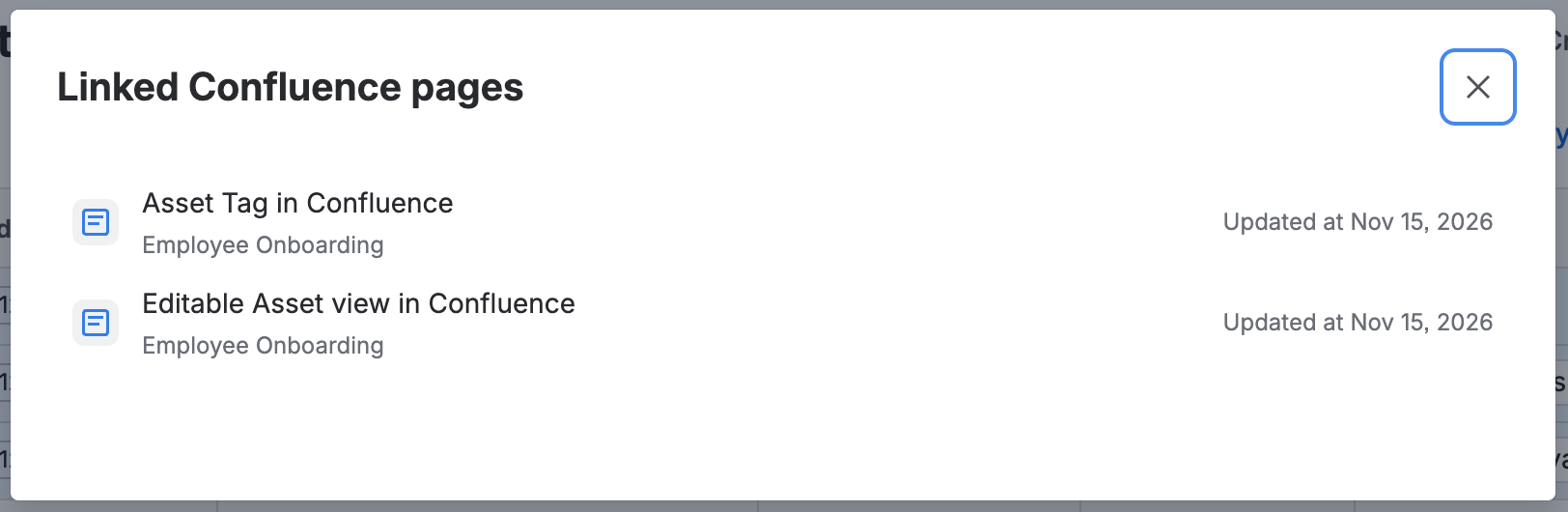
Review the pages containing indexed Asset Tag references to those assets.
This action is available only when Confluence is connected to the same Atlassian site and environment.
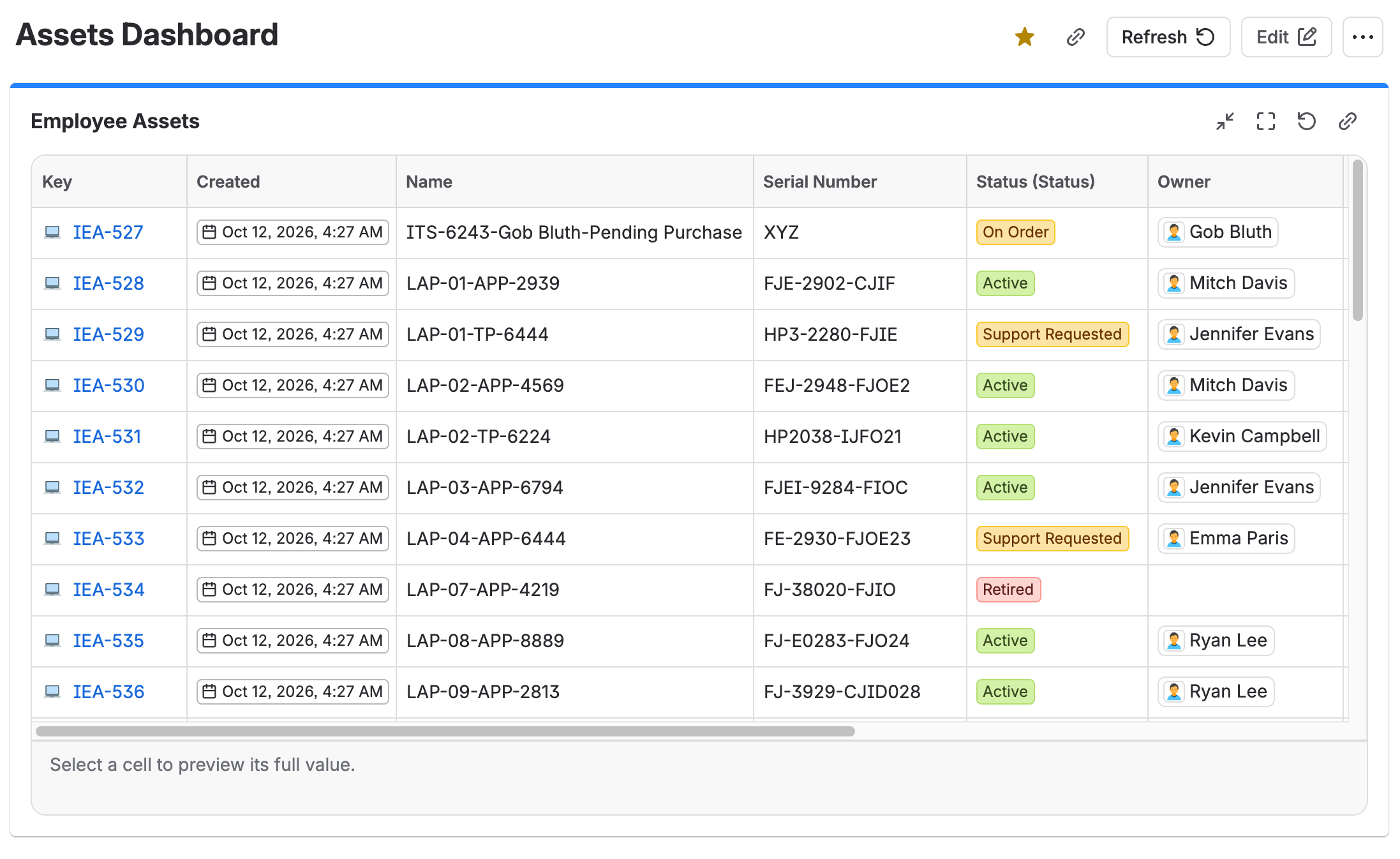
Display a view on a Jira dashboard
-
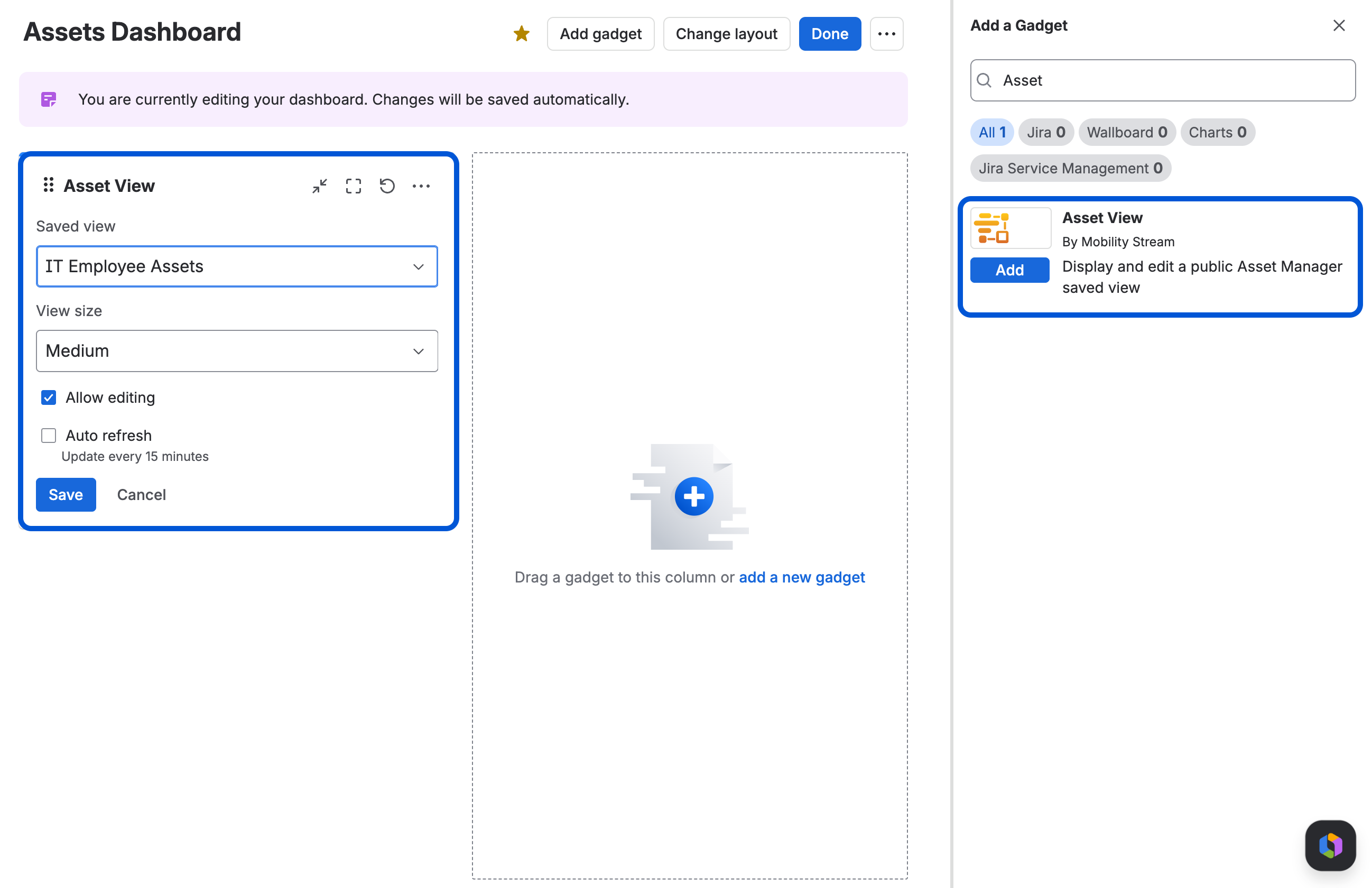
Add Asset View Gadget to a Jira dashboard.
-
Select a Public saved view.
-
Configure the editing and refresh options.
-
Save the dashboard gadget.
You can add other gadgets to the dashboard. Dashboard viewers still need access to the underlying Jira Assets data.
Asset Manager never uses a Confluence page or shared view to bypass Jira Assets permissions. Every operation runs with the current user's access.