

Large asset inventories can be difficult to navigate, especially when you regularly work with the same subset of information. Create focused views using search, filters, sorting, and columns so you can quickly return to the assets you need without rebuilding your setup.
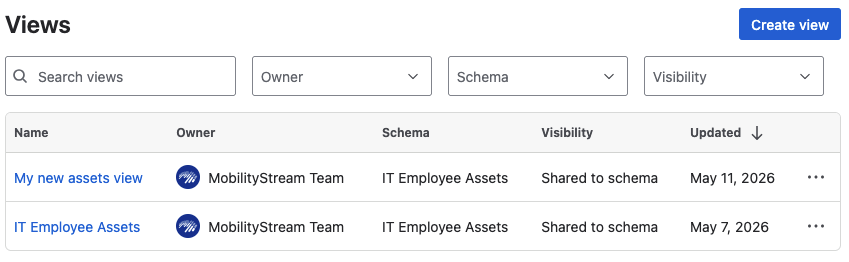
Browse saved views
If saved views are available, the Views directory lists the views you can access. If no views exist yet, create one first. Search by name, filter by owner or visibility, and sort the directory to find a view.
Choose an asset scope
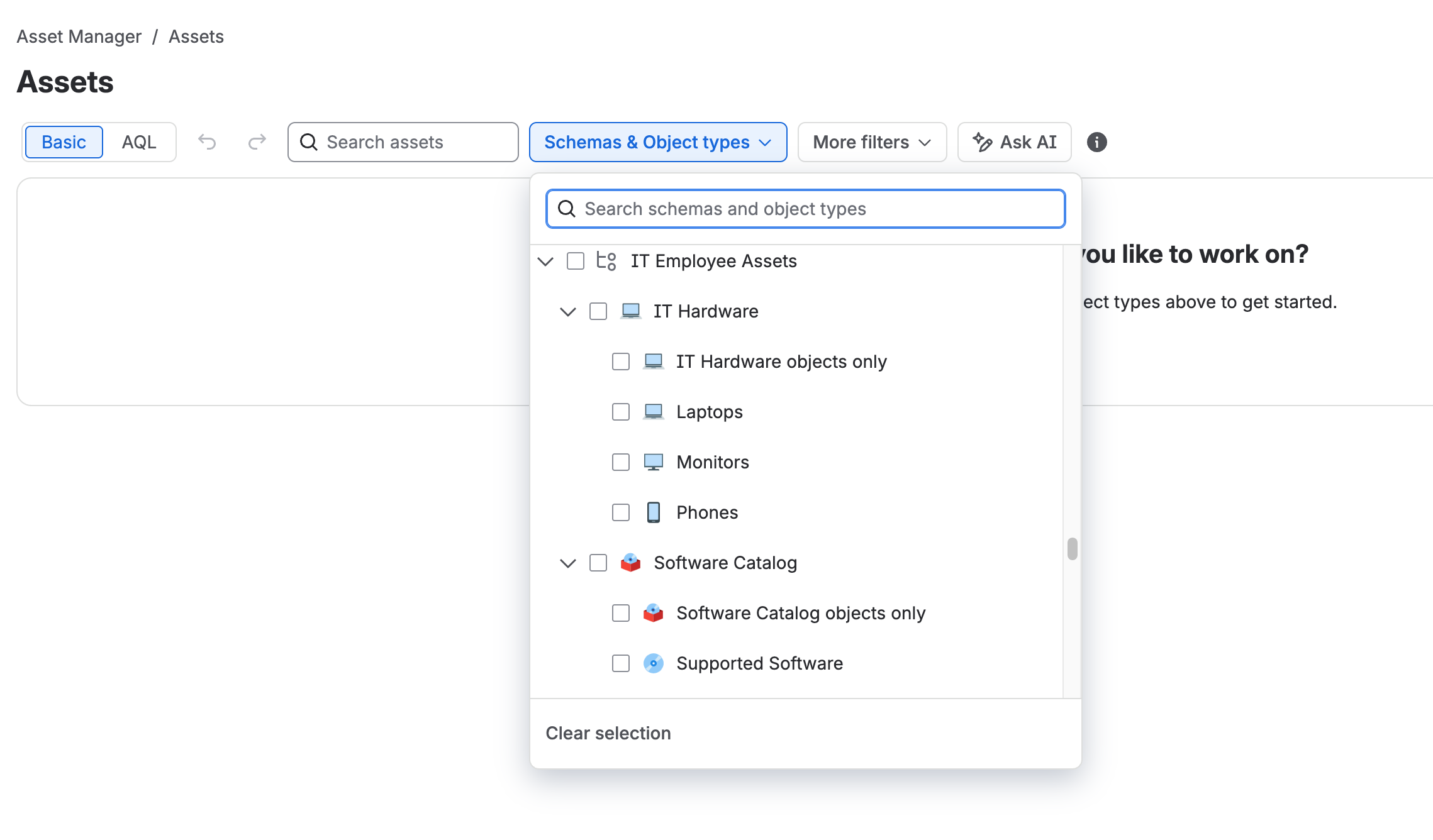
In Basic mode, open Schemas & Object types, then select a schema and optionally one or more object types. Your Jira Assets permissions determine which objects and attributes are available.
Search, filter, and sort
-
Use Search assets to find matching asset names, labels, or keys in the current workspace.
-
Use More filters to filter supported attributes such as status, user, group, project, select, date, and date/time.
-
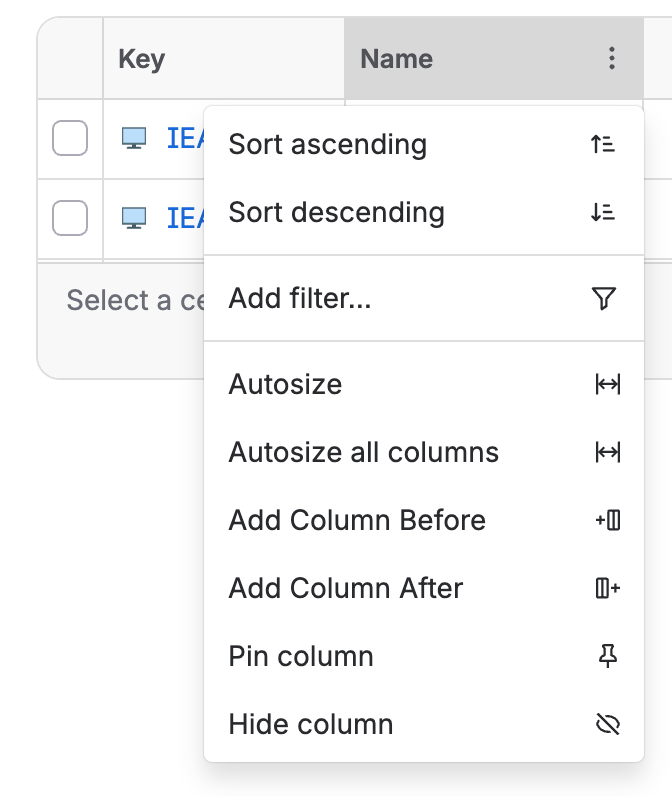
Open a column header to sort, filter, pin, hide, or resize that column when the action is supported.
-
Use Columns to control which attributes appear in the grid.

Use AQL
Switch from Basic to AQL when you need to enter an Assets Query Language query directly. Press Enter to run a non-empty query.
Build AQL with Ask Rovo
-
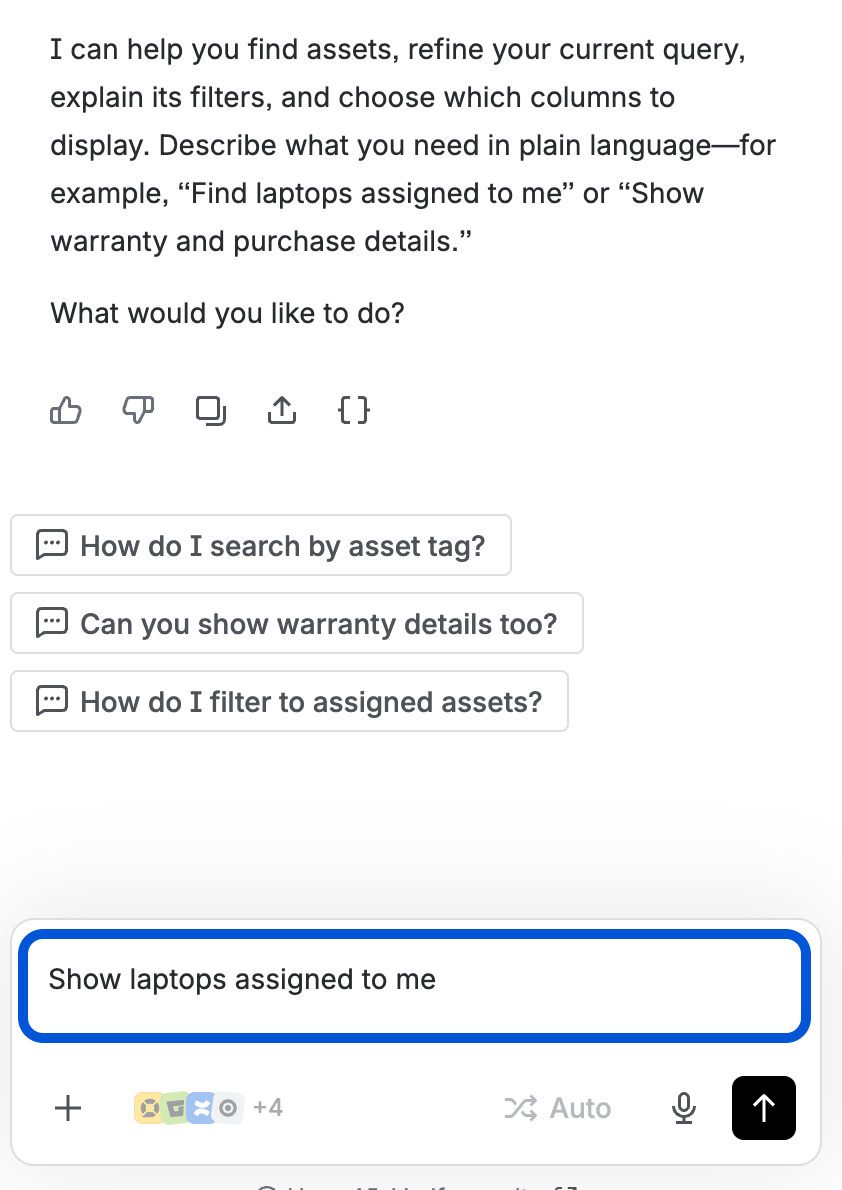
Select Ask AI beside the query controls.
-
Describe the assets you want, such as “Show laptops assigned to me.”
-
Answer clarification questions and review the proposed query and columns.
-
Confirm the result to send it to the editor, then refine it with follow-up questions if needed.

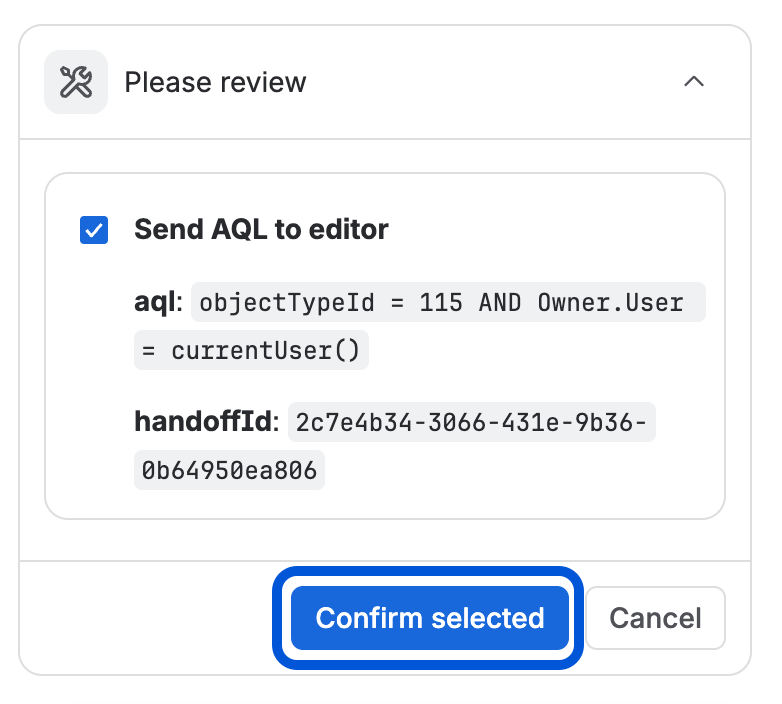

Ask Rovo requires Atlassian Rovo to be available on your Jira site. Running a query does not modify asset data or save the view automatically.
Save and share a view
-
Save updates the current saved view.
-
Save as creates another view from the current workspace.
Choose Private when only you should use the view. Choose Public to make the view available to other users who also have the required Jira Assets access.
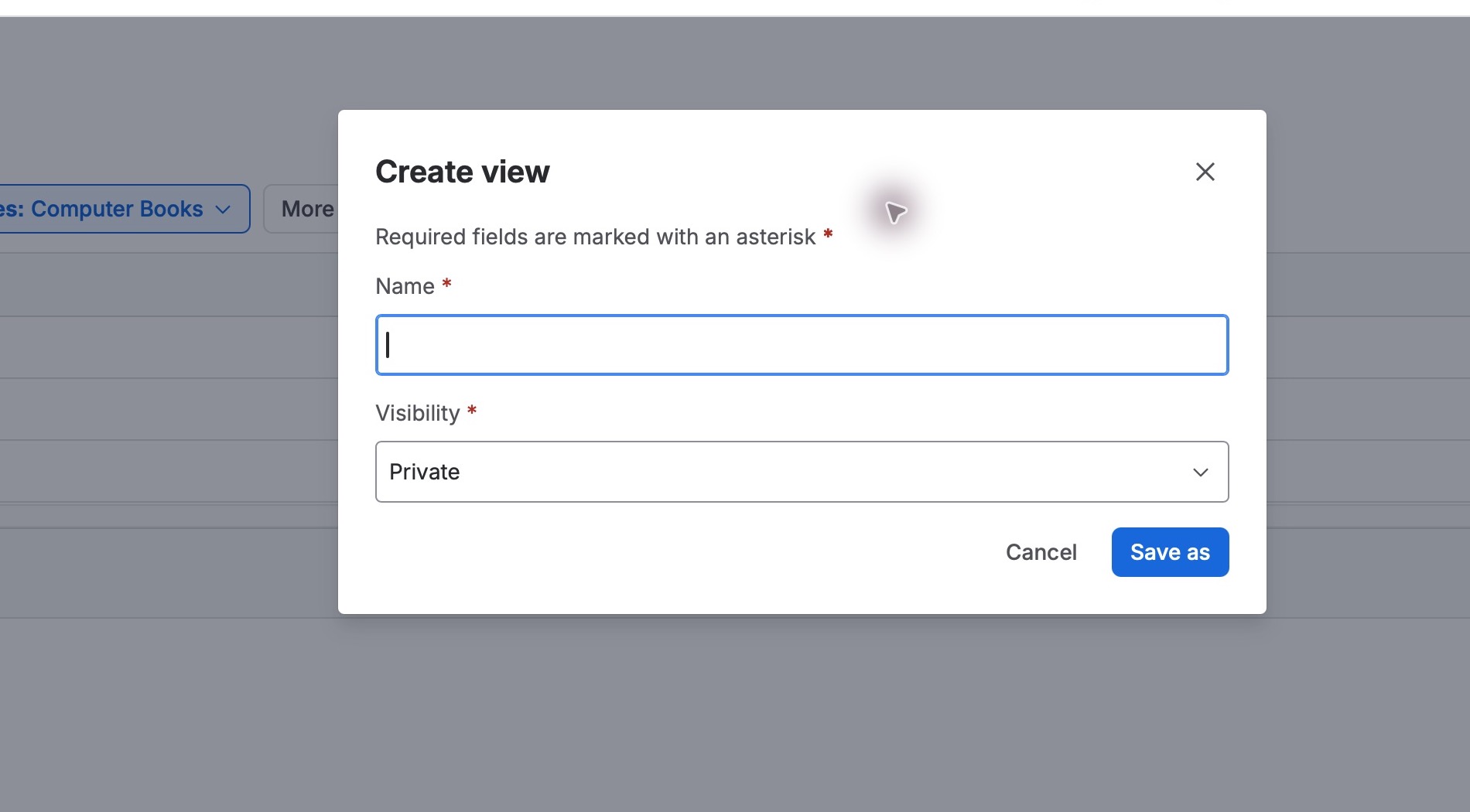
Sharing a view never grants access to Jira Assets data. Each viewer still needs permission to the underlying schema and objects.