
Overview
Mobility for Jira provides now a version of its app that natively supports Intune, no wrapping required. The app can be distributed to an end user via the Public or a Private App Store. Once a user opens the app, they need to register one-time with Intune and afterwards can use the app normally.
Here are the locations where the latest version of the native Intune apps can be downloaded from:
Apple App Store
Google Play Store
Step-by-Step Initial Registrationa and Login
Android-only pre-requisite
Install the Microsoft Intune Company Portal app from the Google Play Store.
Register with Intune
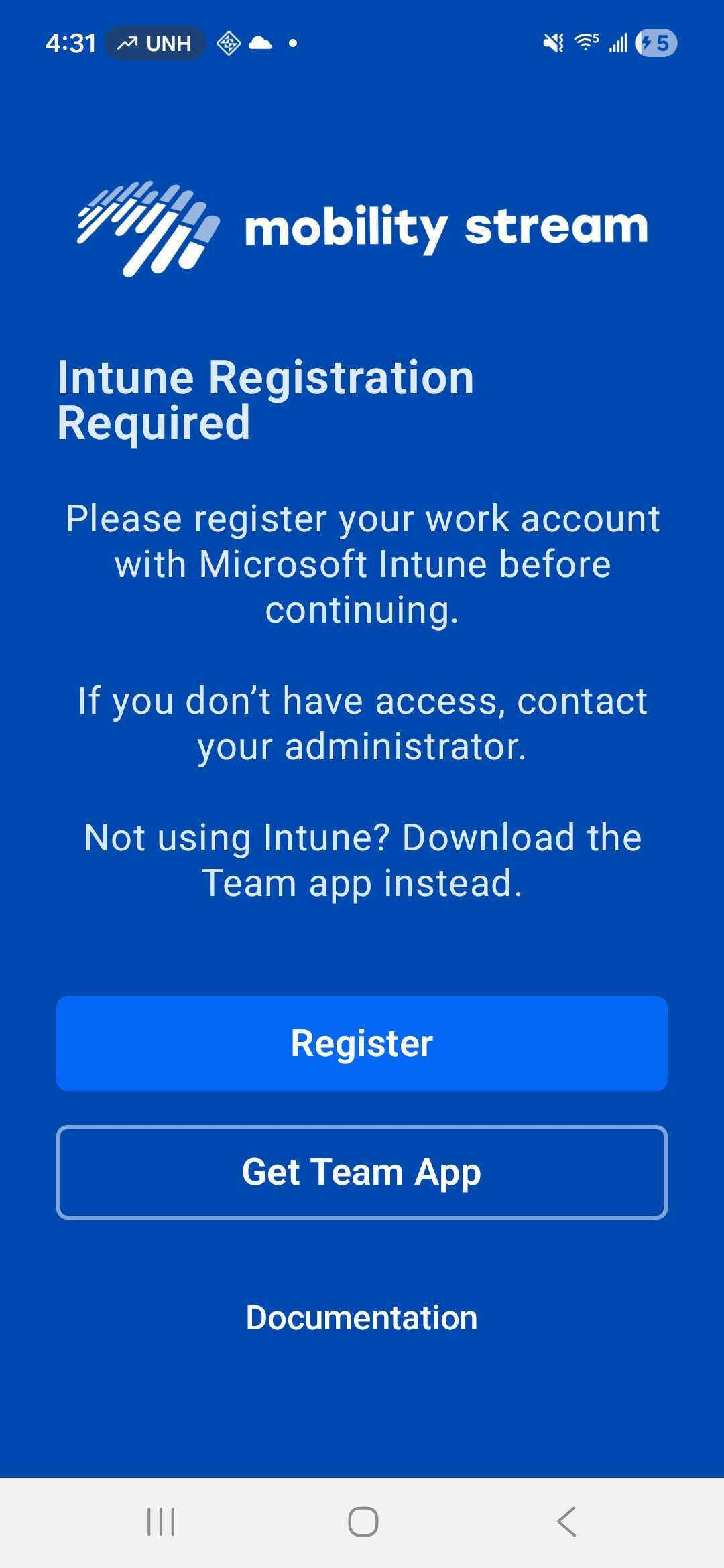
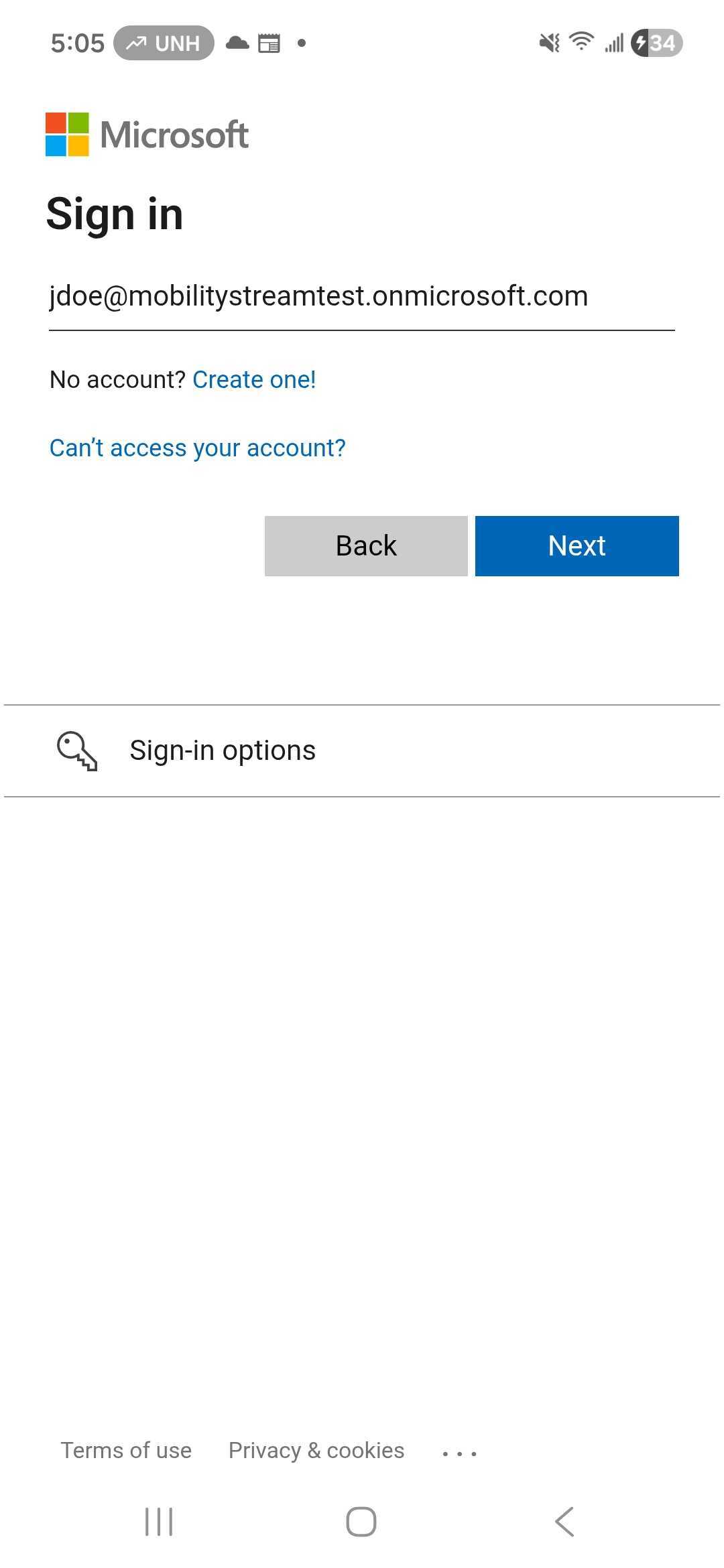
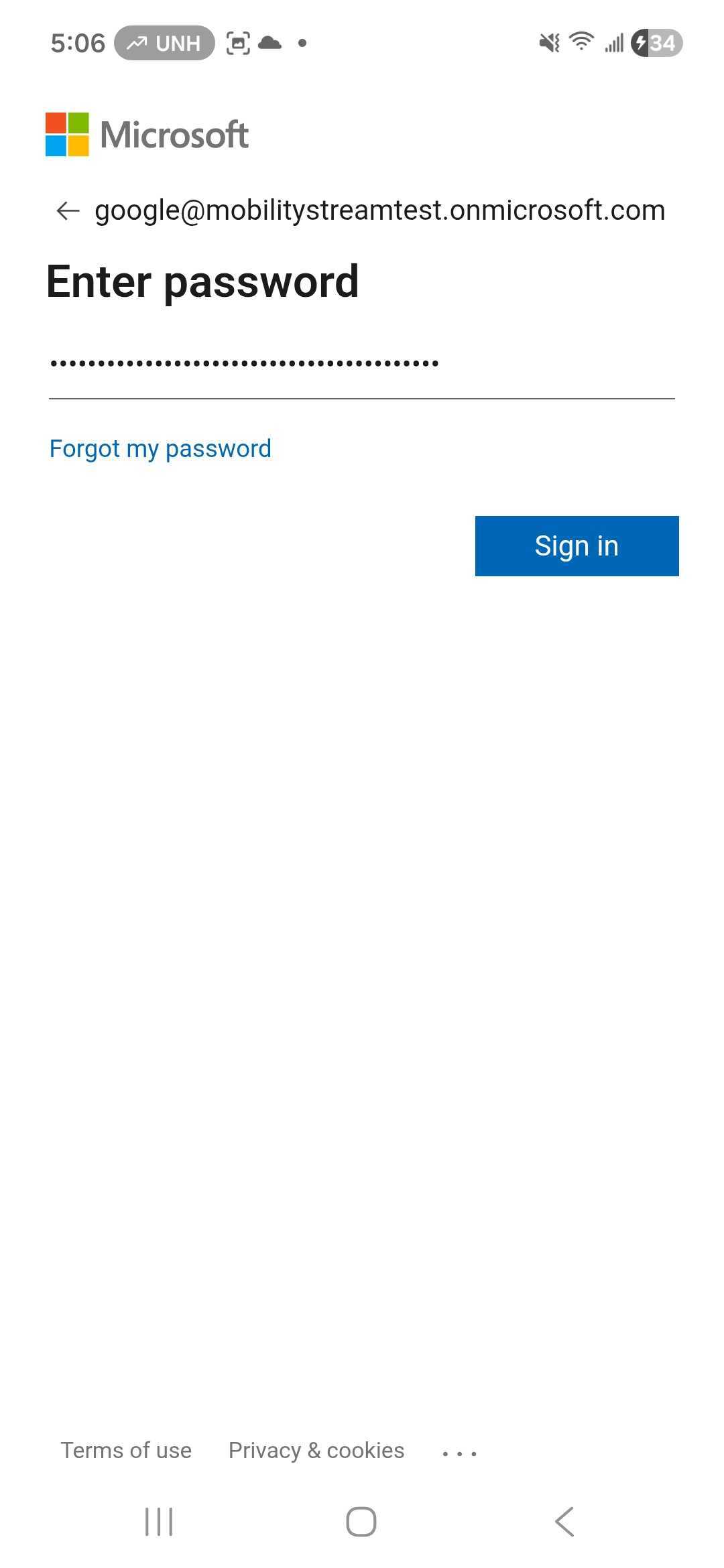
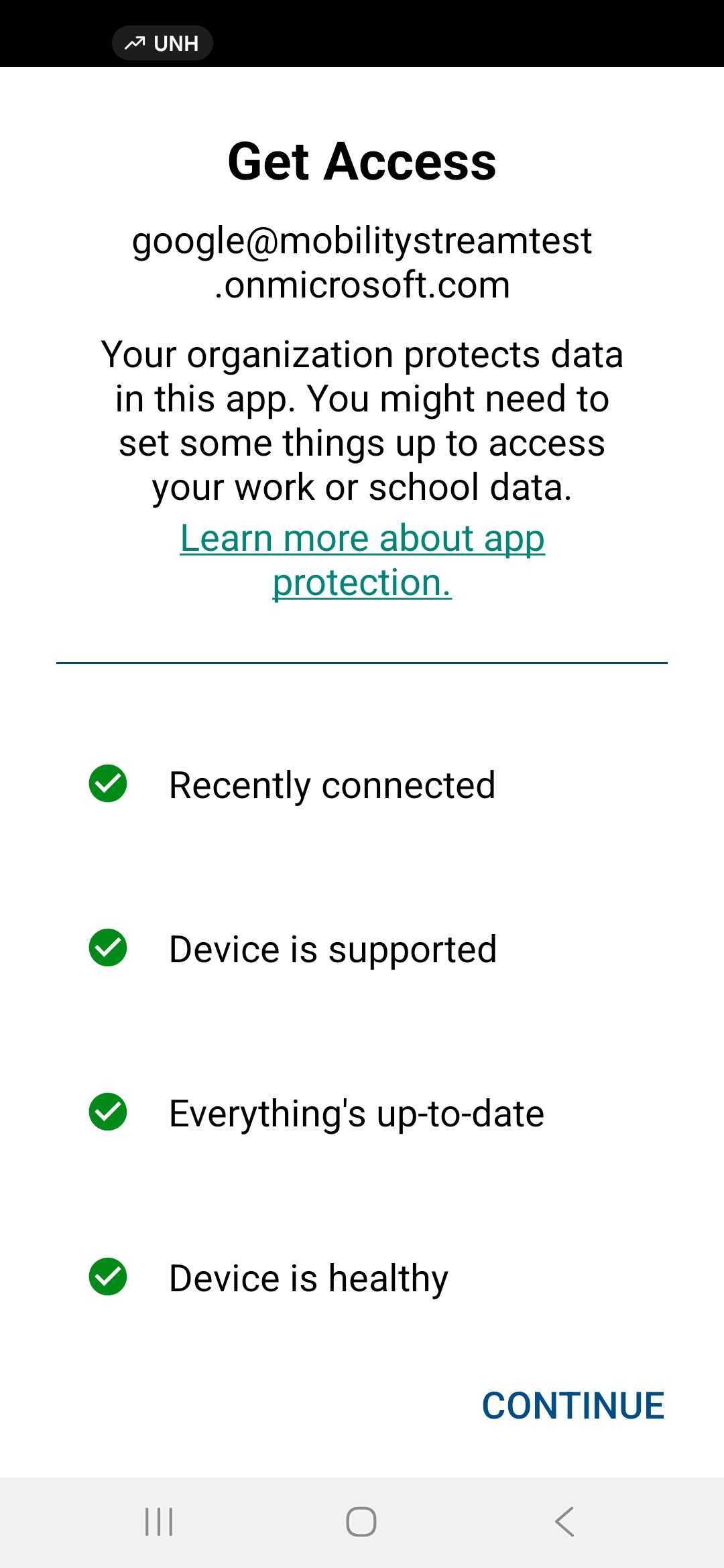
Install the app from a public App Store (see above) or via your private App Store. When you open the app for the first time, an Intune registration page is displayed. Tap on the Register button. You will then be prompted to login with your credentials (such as your-name@company.com) and your password. Depending on your setup you might be prompted to authenticate via MFA (such as Microsoft Authenticator). Upon successful registration a Get Access page will be displayed.
Create a PIN
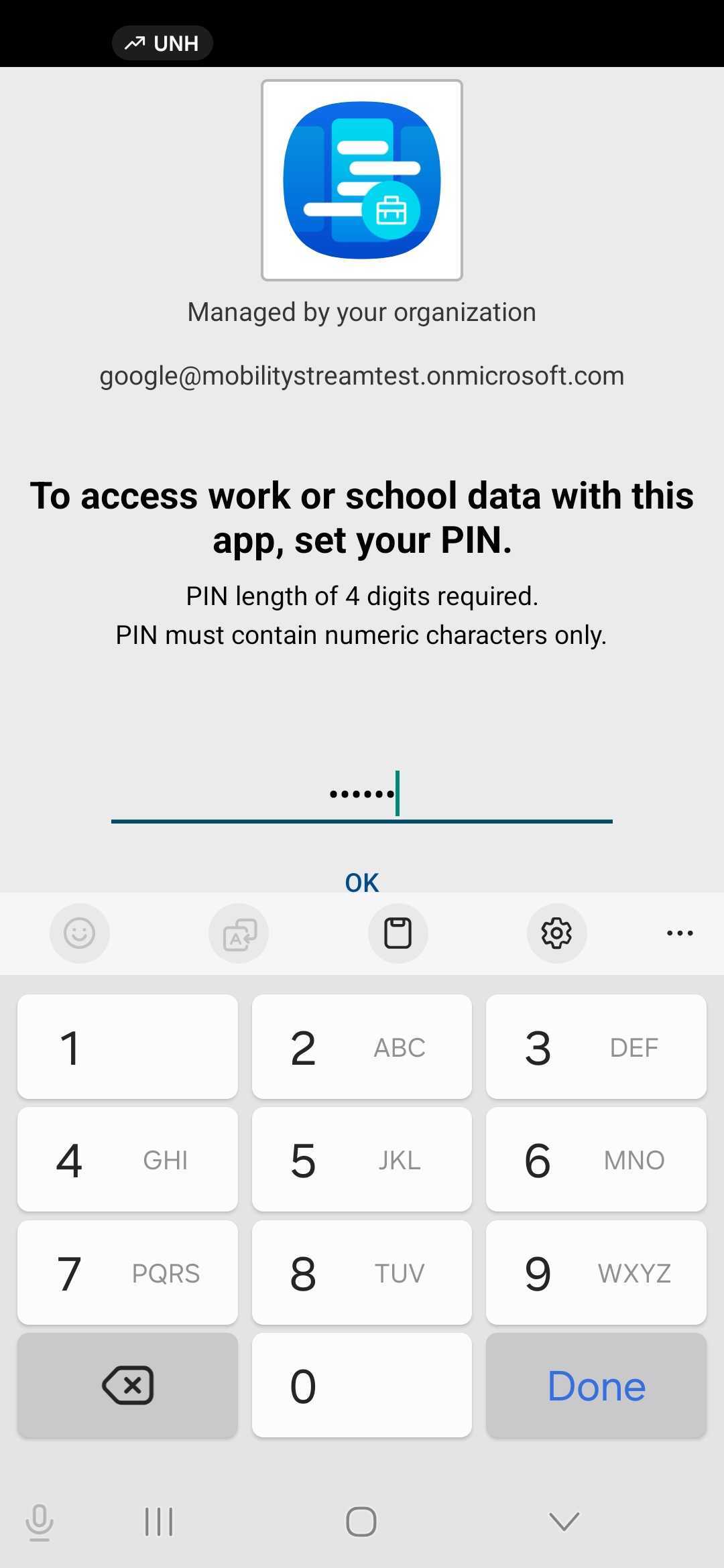
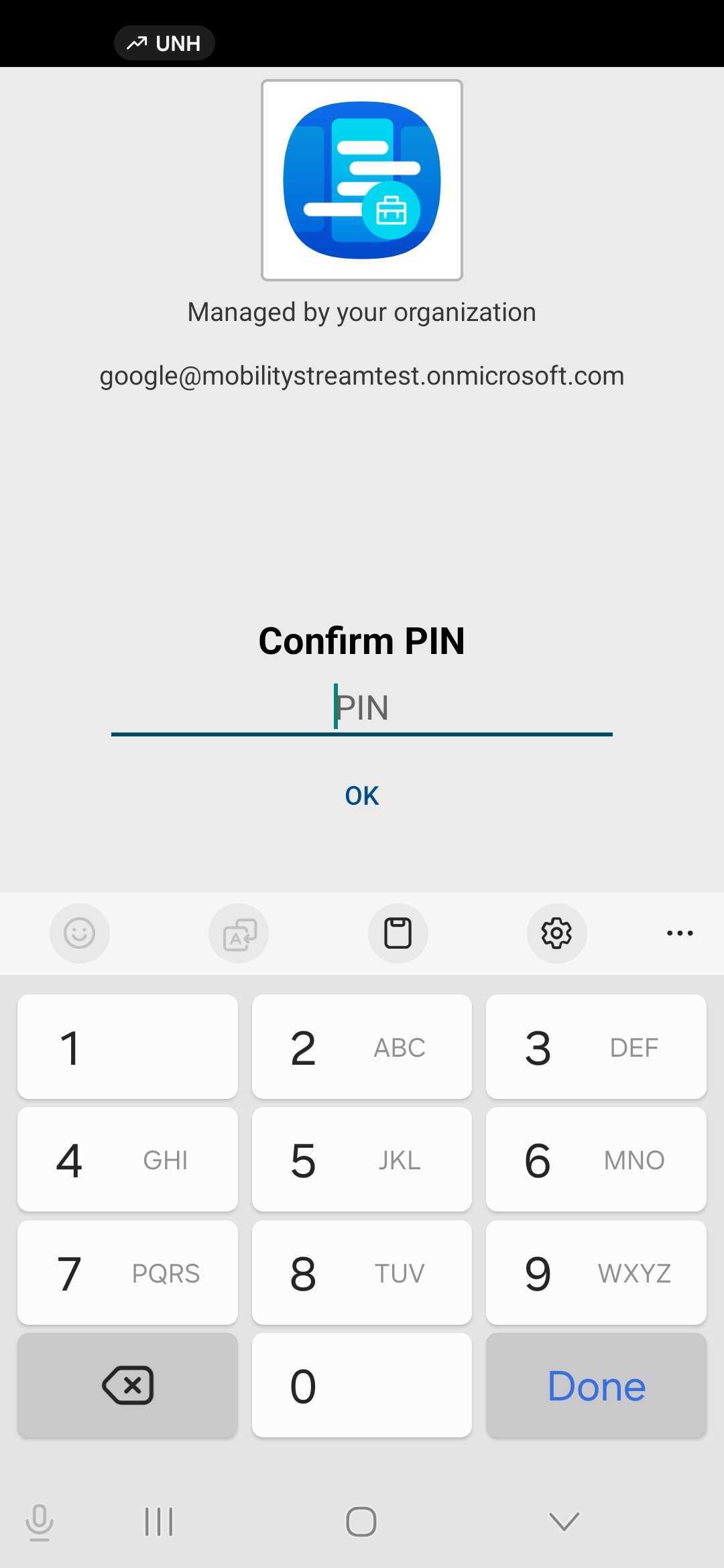
Intune will prompt you to create and confirm a PIN,
Login to App
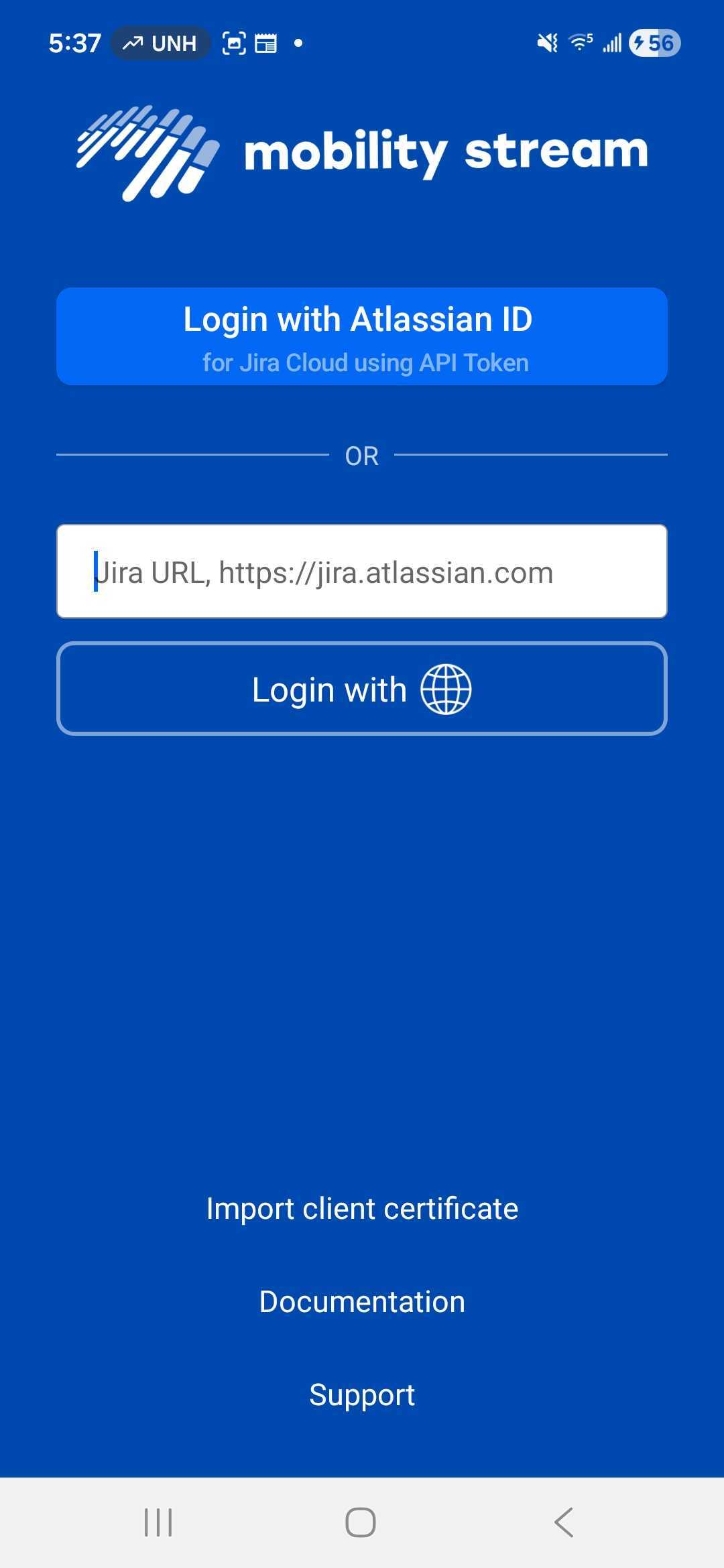
After successfully completing the steps above you will be presented with the regular app login page. Enter your credentials (Jira Cloud) or your Jira Url and your credentials (Jira Data Center).
Should you want to unregister Intune, log out of the app and tap the Unregister button at the bottom. Please remember, the native Intune app will need to be connected to Intune otherwise it won’t work. If you don’t require Intune use our regular Team app,