

Note: This information pertains only to Jira Server. If you are using Jira Cloud, please contact us for assistance.
To enable debug logging for the add-on, follow the steps below:
-
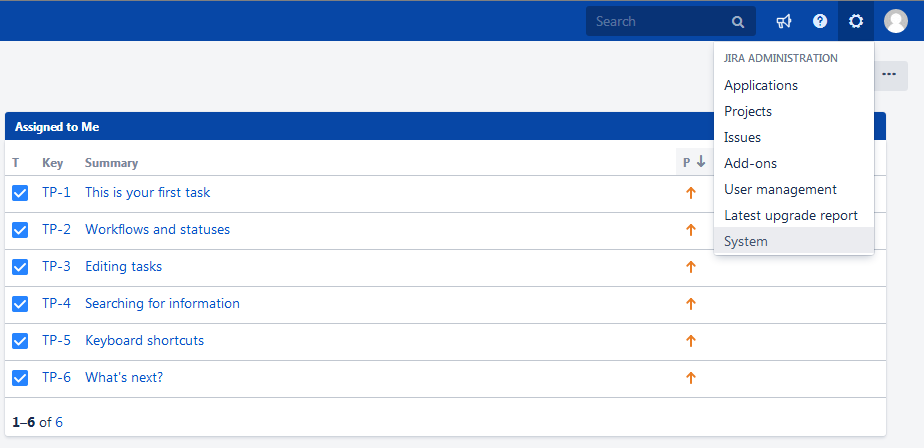
Click on the gear icon in the upper right and choose System from the drop down menu that appears.
-
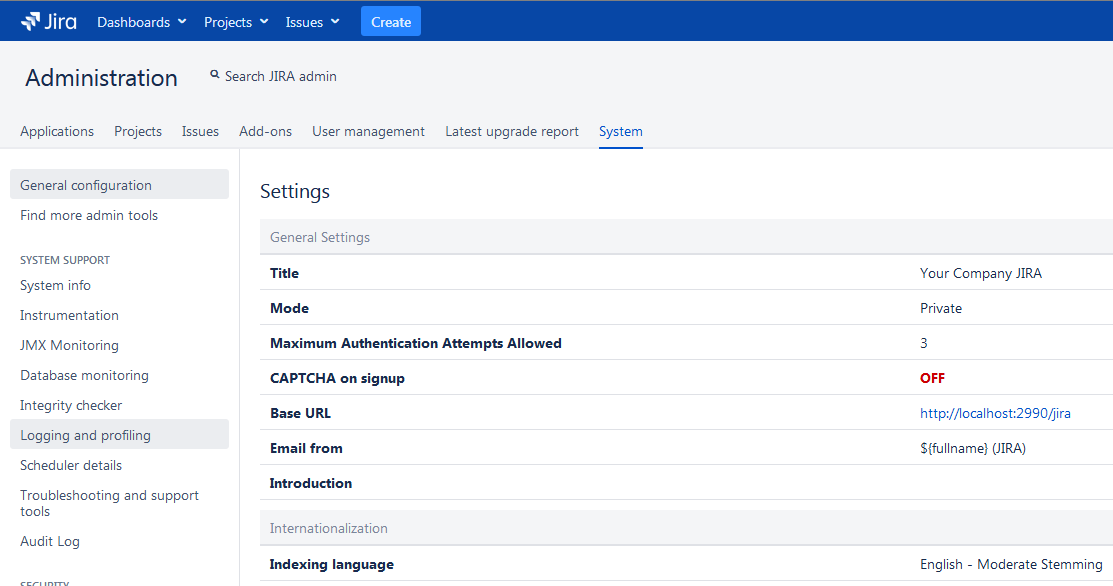
In the Administration screen, click on Logging and Profiling on the left side under System Support
-
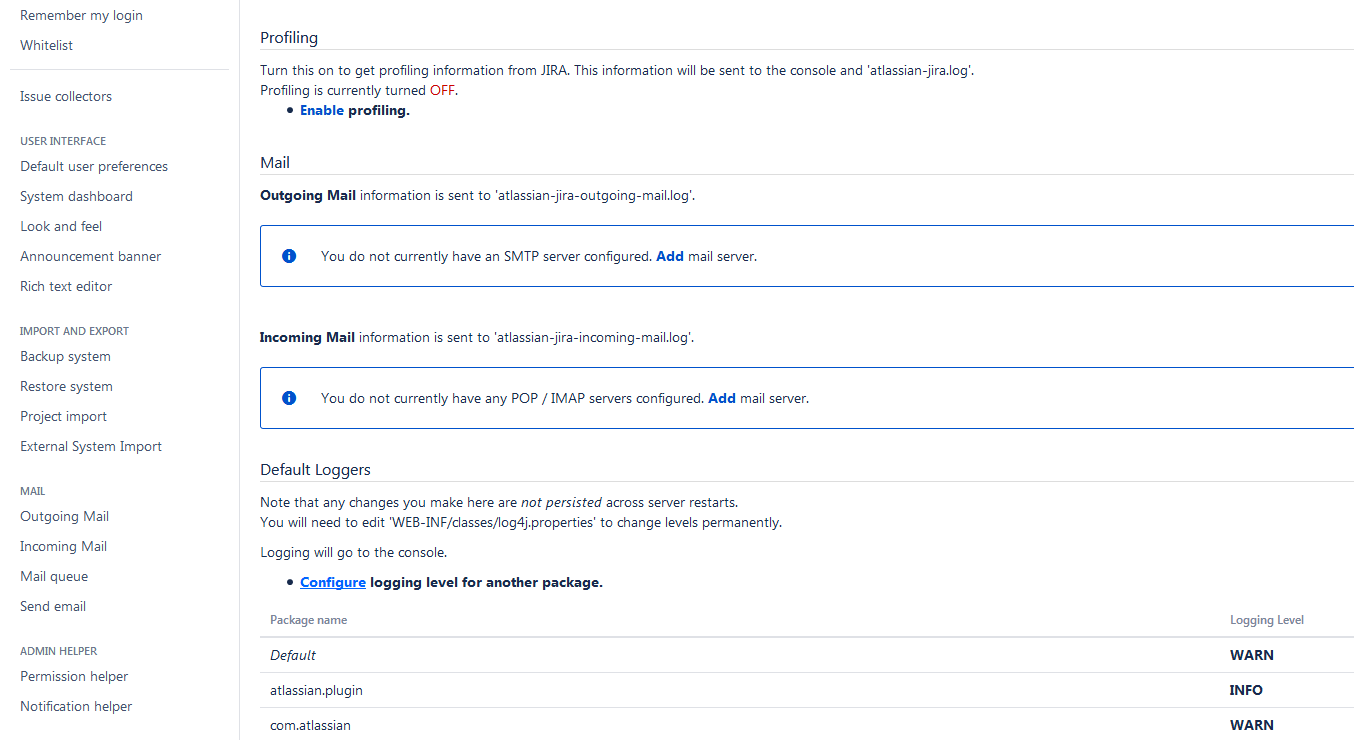
Scroll down to the Default Loggers section and click on the Configure logging level for another package item.
-
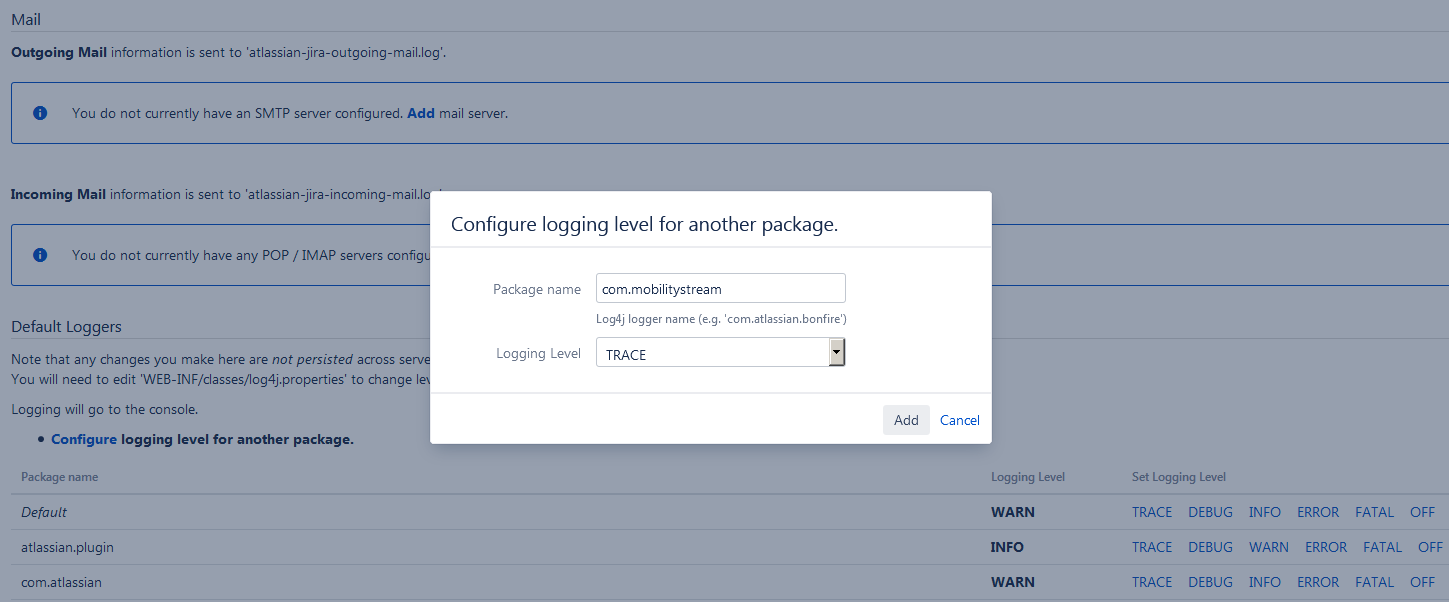
In the dialog that appears, enter com.mobilitystream in the Package name field, select the TRACE logging level, and click the Add button.
-
Perform the actions in Jira that are expected to generate log file entries for the add-on.
If you need to send a support zip to MobilityStream, continue with these steps below:
-
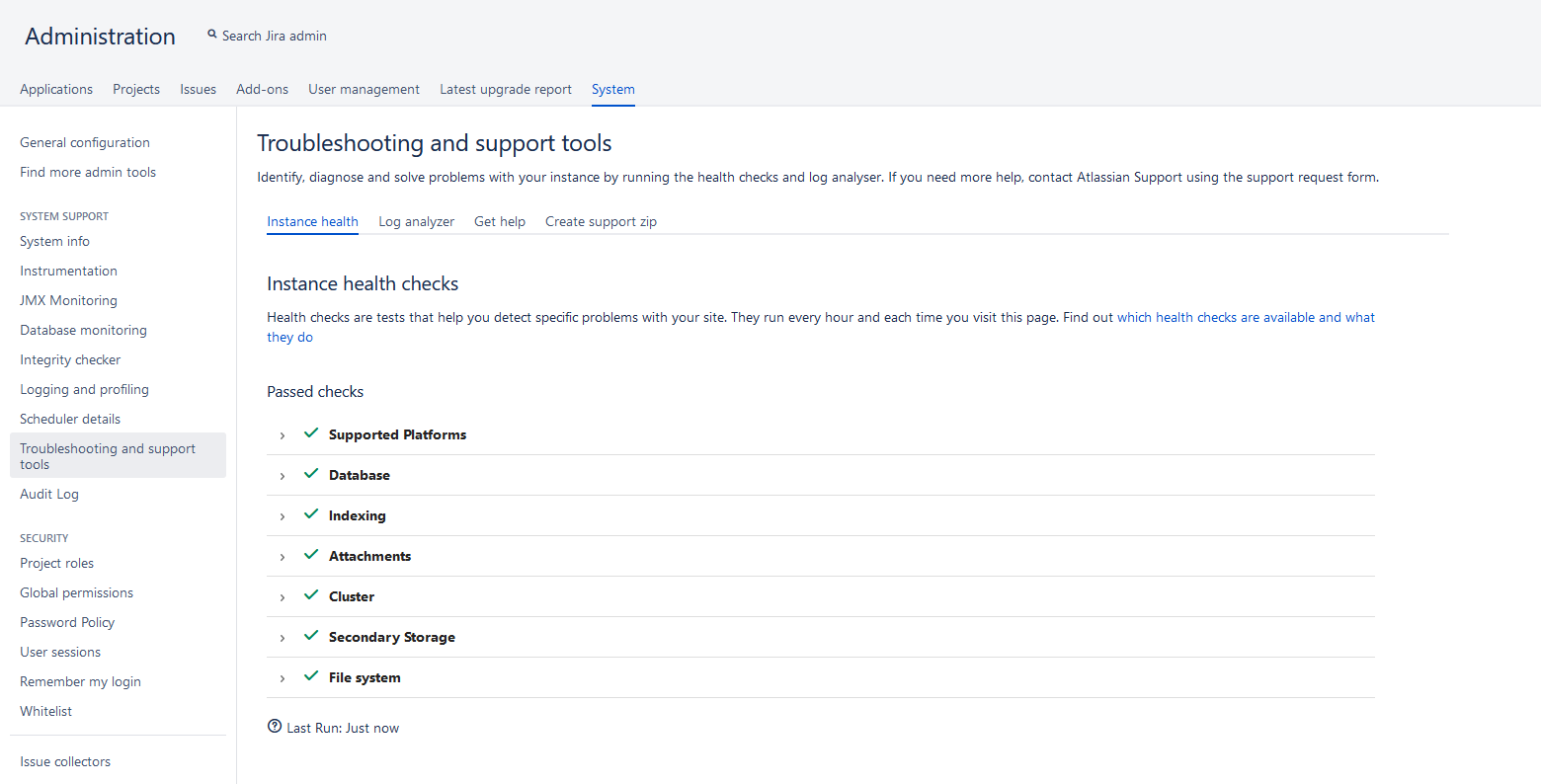
Return to the Administration screen and click on Troubleshooting and support tools on the left side under System support.
-
Click on Create support zip near the top.
-
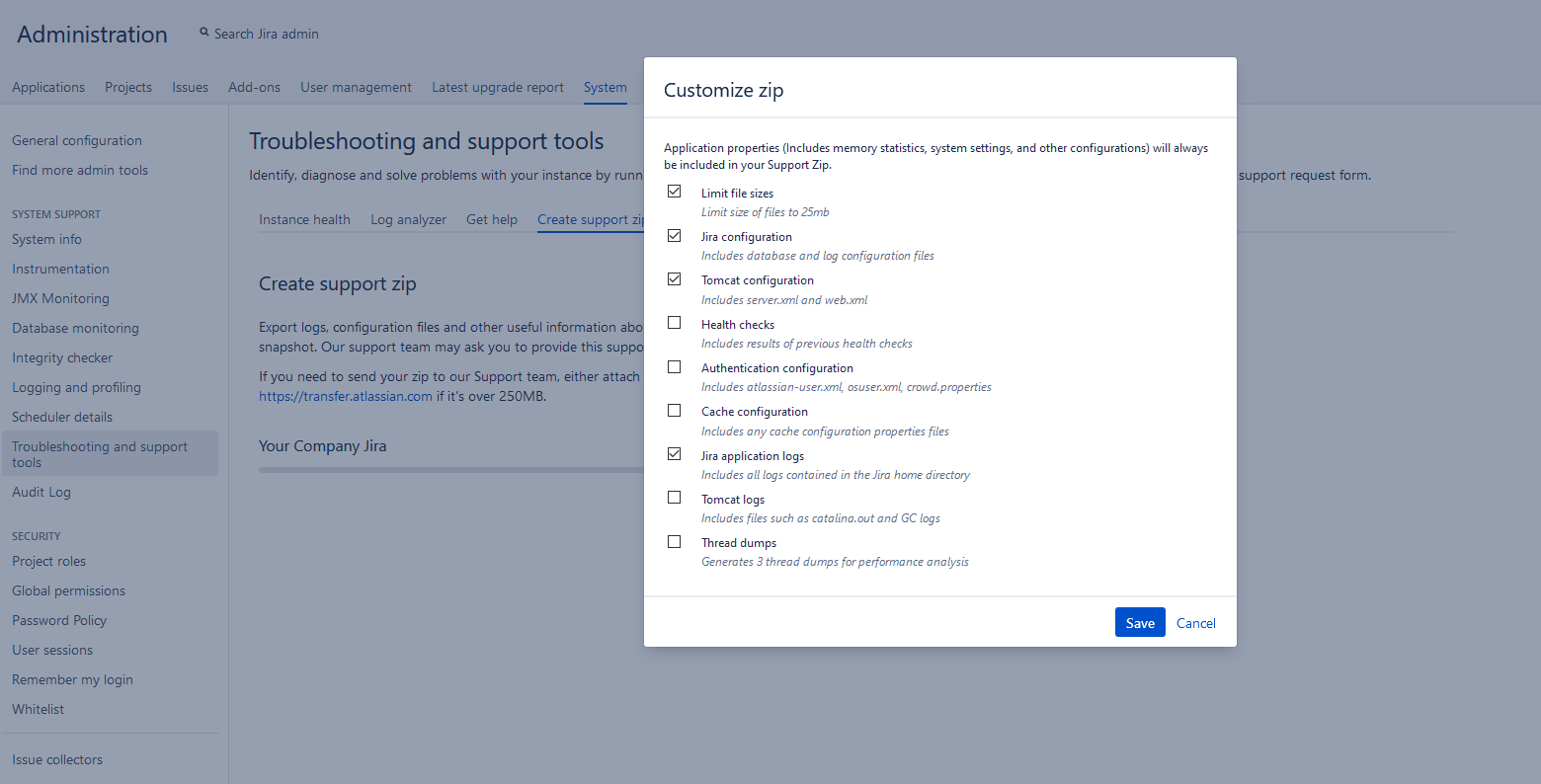
On the Create support zip screen, click the Customize zip button, tick the check boxes as shown below, then click the Save button.
-
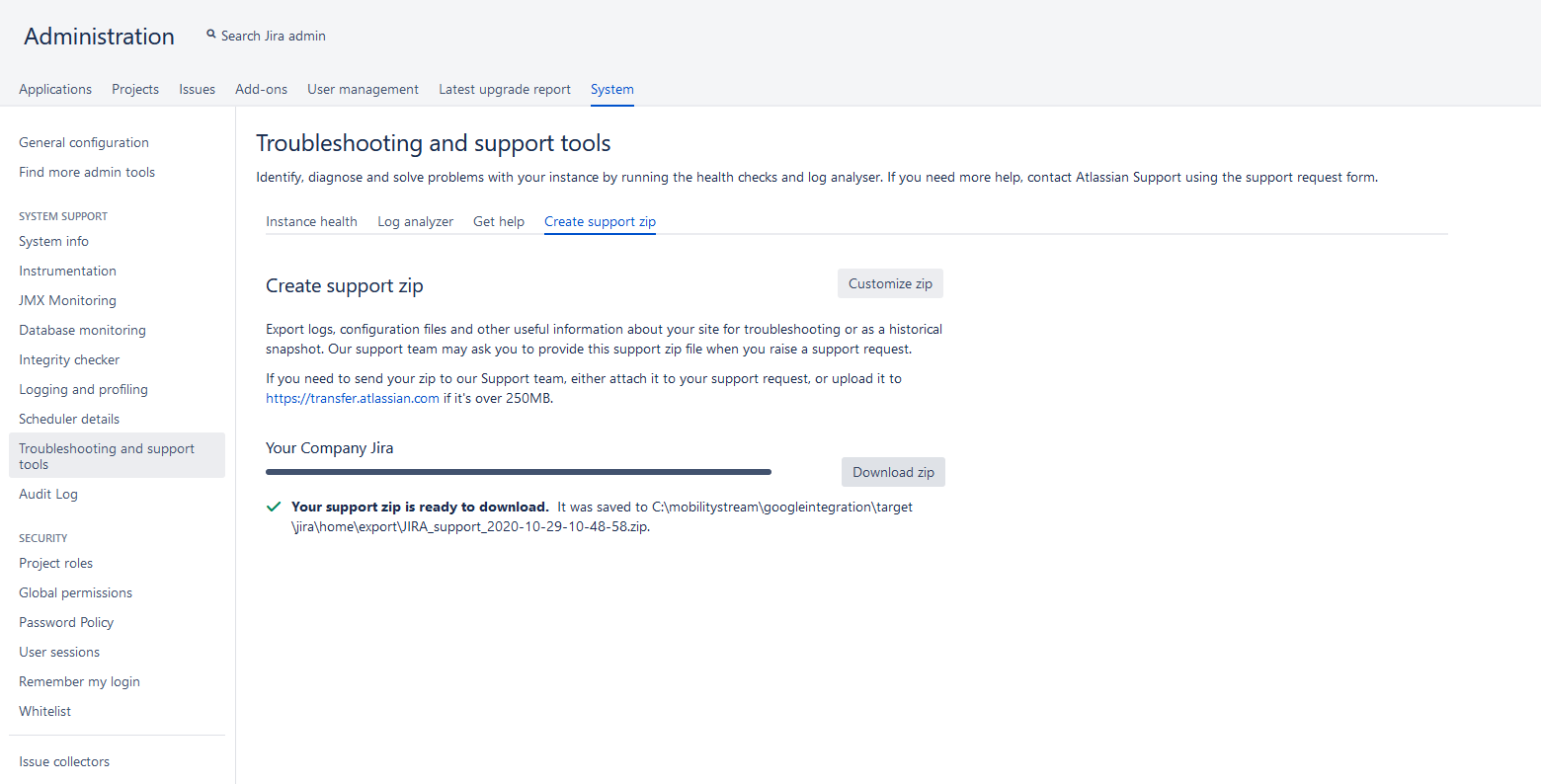
Click on the Create zip button to generate the zip file. When the process is complete, click on the Download zip button to save the file to your computer.
-
Send this file to MobilityStream support.
Please contact us if you have any additional questions.