

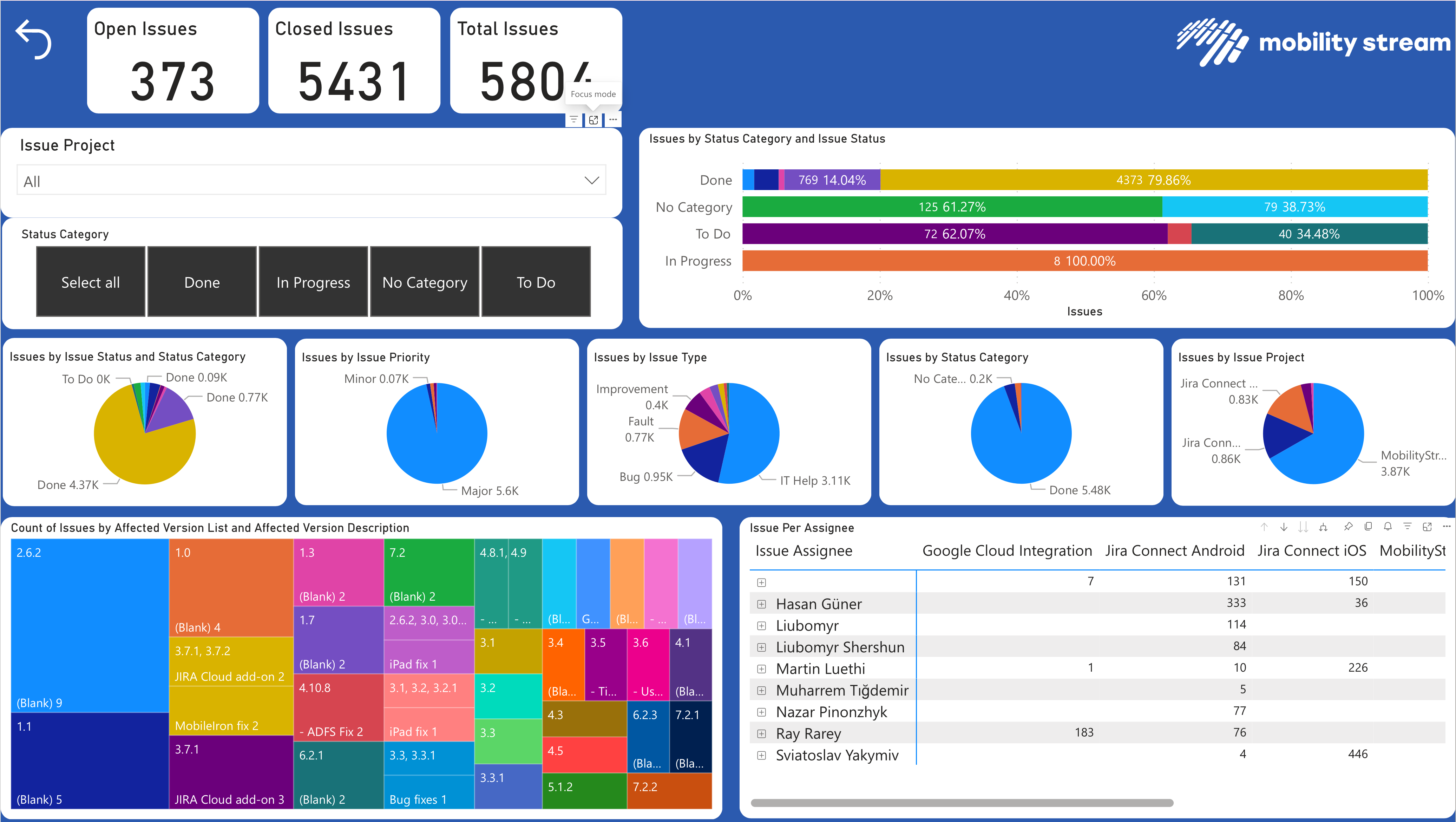
We provide a Power BI template that should get you started with visualizing some basic Jira data directly from your Snowflake database. First you will need to configure Snowflake for Jira and create an export.
Required Fields
You will need to include at least the fields listed here to make the PBI report work. You can include additional fields in the export if you wish.
-
Assignee Account ID
-
Assignee
-
Affects version IDs
-
Affects versions
-
Components
-
Components IDs
-
Created
-
Creator Account ID
-
Due date
-
Fix versions
-
Fix versions IDs
-
Work ID
-
Issue Type
-
Issue Type ID
-
Linked Issues
-
Parent
-
Parent Link ID
-
Parent Link Key
-
Parent Link Project ID
-
Priority
-
Priority ID
-
Project ID
-
Project Key
-
Project Name
-
Reporter
-
Reporter Account ID
-
Resolution
-
Resolution ID
-
Sprint
-
Status
-
Status Category
-
Status Category ID
-
Status ID
-
Summary
-
Updated
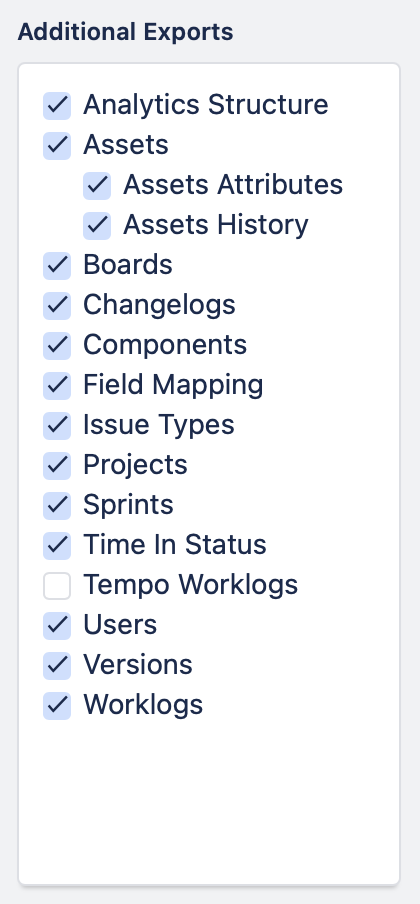
Required Additional Exports
Make sure you select additional data to be exported as well.
Download the template and config file
Download the pbit template file: snowflake_for_jira_template_v4.pbit
Download the template config file: s4j_pbi_config.xml
Before opening the pbit template file in Power BI Desktop, please create the following directory on your hard drive: c:\s4j, then copy the s4j_pbi_config.xml into the newly created folder. If you need to store it somewhere else you will need to adjust each query in the PBI file.
Now edit the s4j_pbi_config.xml file to match your configuration.
<config>
    <snowflake_account_name>jra999.snowflakecomputing.com</snowflake_account_name>
    <snowflake_warehouse_name>COMPUTE_WH</snowflake_warehouse_name>
    <snowflake_database_name>JIRA</snowflake_database_name>
    <snowflake_schema_name>PUBLIC</snowflake_schema_name>
    <snowflake_issue_table>S4J_ISSUES</snowflake_issue_table>
    <snowflake_table_prefix>S4J_</snowflake_table_prefix>
</config>
Open template with PBI Desktop
Open the pbit file with PBI Desktop. You will be asked to enter credentials to connect to your Snowflake instance as defined in the config file.
After that you may need to refresh all the data in PBI.
It is possible that you see some messages to manually refresh queries, go ahead and press refresh.

You should now be ready to use the Template. You can publish the current version or modify it as needed.
If you run into issues or have further suggestions, please contact us.